
Rutba Office 2.22 and 2.23: Live Broadcast, a free app for going live with several cameras
Going live used to be a button in the Recorder. It is now an app of its own: each camera has its own shot, and the picture can follow whoever is speaking. It sends to ten kinds of destination, wide and tall at once.
· 5 min read

Going live arrived in Rutba Office 2.5 as a button inside the Recorder. In 2.22, on 3 November, it became an app of its own with its own tile, because a recorder that also streams did not say what it was for. In 2.23, on 9 November, the app got a new window and many more places to send to. Anyone who had the Recorder has Live Broadcast too, until they turn it off in Choose apps.
The introduction film shows it in a few minutes. Four how-to films take it a task at a time: going live, switching cameras, following the speaker and rotating shots. They were made on 2.22, so they show the window from before the two panels described below.
A shot for each camera
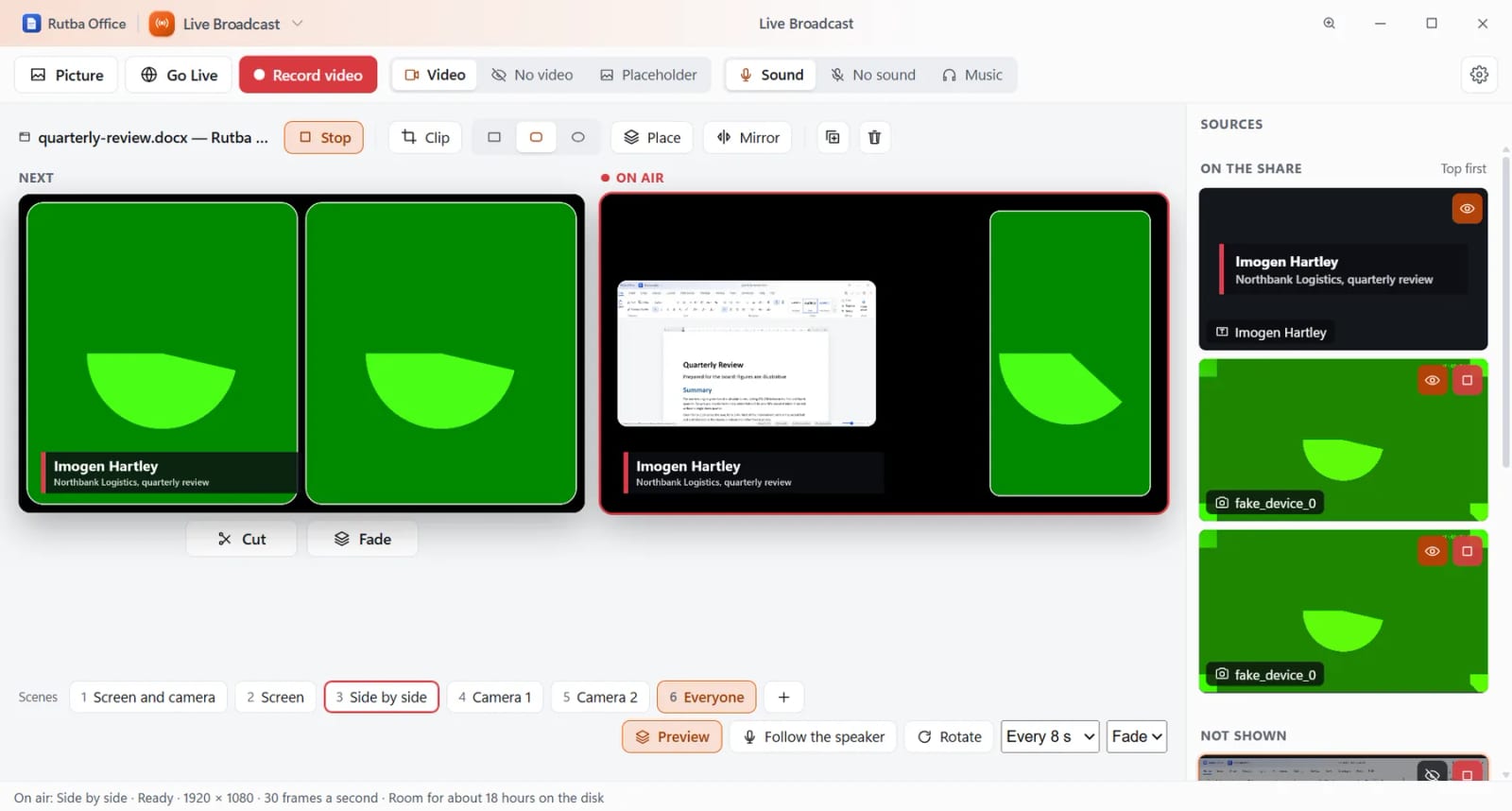
With two cameras or more, say one on the front and one on the side, or one on each speaker, each camera has a shot of its own: Camera 1, Camera 2 and so on, on the keys 1 to 9. The wide shot, Everyone, puts them side by side. From there the picture can change by hand or change by itself.
- By hand. With Preview on, the shot you pick waits beside the one on air, where you can still move, clip and shape what is in it. Cut puts it on air at once, Fade dissolves it in over the shot before, and Space takes it with the transition you chose.
- By who is speaking. Pair each shot with a microphone. A voice heard for a second and a half brings its shot up, and a shot stays at least three seconds. When two people speak at once, or nobody has for a while, the wide shot goes up.
- On a timer. Rotate brings up a new shot every 3 to 30 seconds, through the shots you mark In the rotation, or through the cameras and the wide shot.
A shot you pick by hand always takes over from Follow the speaker, so a person at the desk has the last word.
Ten kinds of destination, wide and tall at once
Version 2.23 sends to YouTube, Facebook, Twitch, TikTok, Instagram, LinkedIn, X, Kick, Rumble or any RTMP address. Each stream you set up has an icon above the picture. Turn one on or off at any moment, before or during the broadcast, and the others carry on.
Wide and tall are separate choices. With both on, both go out at once from encoders of their own at their own sizes, and a tall layout is kept for its scene. Keep a copy can record either shape on your own computer.
- My streams lists what you have set up with no addresses or keys on show. Stream keys are kept encrypted on your computer, and a key is only ever shown by its last four characters.
- One button. Go live becomes End broadcast, which asks first. Turn every icon off and you are OFFLINE with the broadcast still open and a copy still recording, so you can take a break and come back.
- A web page as a source. Add an https address and it is drawn out of sight in a locked-down window of its own. A strip under the picture flips it with Previous and Next, or with a clicker’s Page Up and Page Down.
If you go live on one of them, tell us what happened. A report from a real account is the thing we most need for this app.
Set up first, then Record or Live
The Recorder and Live Broadcast both open on two panels from 2.23. Set up is where scenes are made and Record or Live is where they are used, so the window you work in while on air is no longer the one you arrange things in.
- Set up has sources on the left, the frame in the middle, properties on the right and the scenes underneath. Sources snap to the edges, the centre and each other, and Alt drags freely.
- Named setups. What you arrange is saved as it changes. Keep one for a webinar and another for a podcast, and move between them from the top of the window.
- A setup can be passed on. It saves as a
.rstudiofile with its pictures and music, and stream keys are never put in it. When a setup opens, its sources are found again by what they are, and one that has gone says Not found and offers Choose.
Video and Presentations now record through this same window, with the same scenes and meters.
What else the two releases changed
- One studio (2.22). In the Recorder a screen, a window and a camera are each clipped, shaped, placed and mirrored the same way, from the bar over the share.
- The same menu in every app (2.22). New comes first and Close Window last, with the app’s own items in between.
- Recording for AI tools (2.22). The Office MCP can list windows and record one into a folder the AI tools may use. It is Off until you set it, and going live is never a tool.
- Home in two sets (2.23). Office holds Mail, Calendar, Contacts, Talk, Documents, Worksheets, Presentations, PDF and Data Files. Studio holds Pictures, Image, Video, Recorder and Live Broadcast.
- Video files that fit a limit (2.23). Fit under a size takes 50 MB, 100 MB, 287 MB or a number you type and aims about 8% under. It then reads the size of the file it wrote, and encodes again lower if that is still over.
Still not done
On Tall in Set up, dragging changes the tall layout while the Place and size controls still act on the wide one. A web page’s own sound reaches a stream only through Computer sound. A recording into Video takes the sources shown when Record is pressed, so switching scene during the take does not change its layers. The timeline has everything each release changed.
Download Rutba Office
Live Broadcast and the rest of the suite for Windows, free under the AGPL, with no account except for Talk.
Download

