
Rutba Office 2.18: Tab as in Word, comments on their words, and filter arrows in Worksheets
Rutba Office 2.18 puts right what the how-to films found. Documents gains Modify Style, comments tied to their words and tracked changes reviewed one by one. Worksheets gains filter arrows, charts that follow their cells and PivotTable filters.
· 4 min read

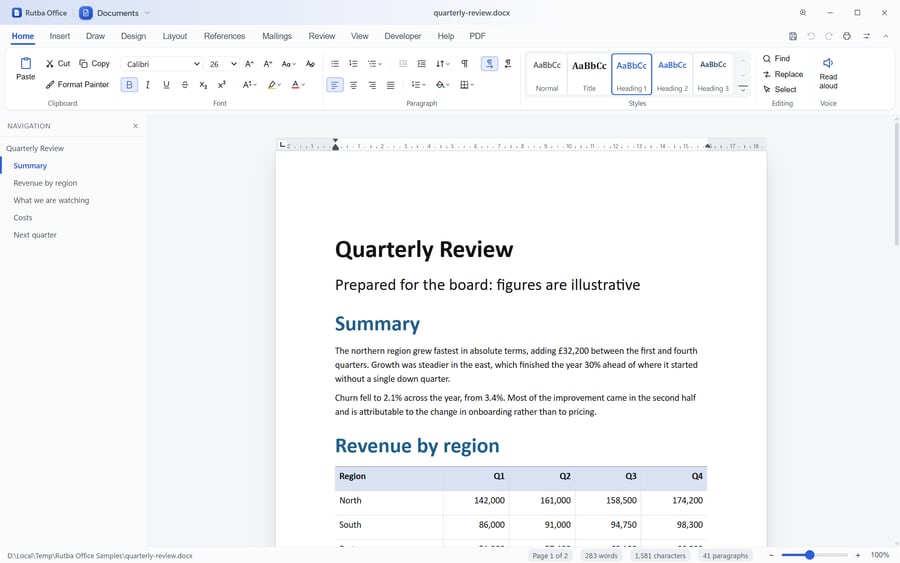
Rutba Office’s how-to films are recorded in the apps themselves, each one a script followed click by click. Following them found faults the checks before release had missed: a letter template that froze, Apply buttons that did nothing, a list that jumped back to the top. Rutba Office 2.18, released on 25 October, fixes those, and finishes much of what the films set out to show.
What’s new in Rutba Office 2.18: Documents, Worksheets and Data Files.
Documents
- Tab and Shift+Tab as in Word. At the start of a list item they move it a level in or out. In a table Tab goes to the next cell, and from the last cell it adds a row. Anywhere else Tab types a tab.
- Modify Style. A right-click on a style in the gallery offers Modify Style and Update to Match Selection. Change the style’s font, size, colour or spacing, and every paragraph with that style changes with it.
- Comments on the words they are about. A new comment is tied to the words selected, which are marked on the page and saved as Word’s own comment range, and it is signed with the same name as your tracked changes.
- Tracked changes one at a time. Next and Previous select each change in turn, and Accept or Reject This Change acts on that one alone.
- Page numbers on every page. Page number and Of total write Word’s own fields, so every page, printout and PDF shows the right number.
- Markdown kept as written. A Markdown file opened and saved without an edit comes back exactly as it was, and a task item shows a box to tick.
- The Letter template no longer freezes when you type in a line holding a tab.
Worksheets
- Filter arrows. A filtered list has an arrow in each heading cell. It sorts by the column, keeps the values ticked in its list, which you can search, or clears the column’s filter.
- Charts follow their cells. A chart redraws as soon as a figure it shows is edited, and a Chart Design tab sets or removes its title.
- PivotTable. The fields pane gains a Filters area, a Refresh button of its own, and By month for a date field.
- Conditional formatting works again for every rule, with colour scales and data bars, and Data Validation’s Apply works again too.
- Sort by the heading row. The Sort dialog names the columns from the list’s headings and never sorts the heading row into the data.
- Old files saved properly. Ctrl+S on a file opened from Lotus 1-2-3, dBASE, Access or another format Worksheets cannot write asks where to save it as .xlsx, rather than showing an error.
- Tables grow by a row when you type just under them.
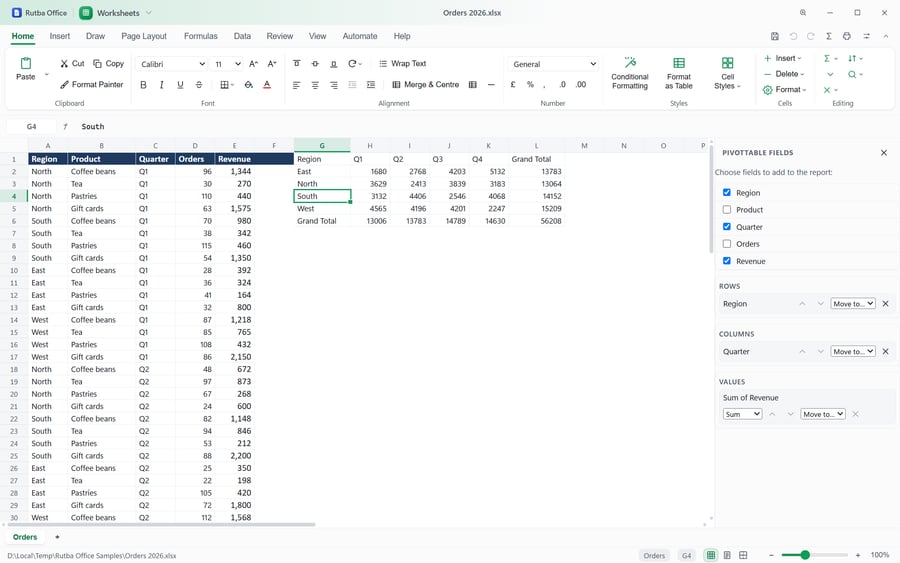
One of the how-to films: an Excel workbook opened in Worksheets, its formulas recalculating.
Elsewhere in the suite
- Mail opens the next message after a delete, archive or move, as Outlook does, instead of starting the list again from the top, and Sent appears among the folders as soon as the first message goes.
- PDF lists every marked word before Apply Redactions, asks about marks not yet saved, and can keep the original open beside the redacted copy.
- Image asks before closing a picture whose edits are not exported, and offers “name edited” beside the original rather than its own name.
- Presentations’ presenter view pauses the clock without pausing the show.
- Pictures’ right-click menu acts on the tile you clicked, not the picture on show.
Data Files had the largest share of 2.18: form design, copies of engine tables that work offline, and tables read from other places. That is in the Data Files post. Every how-to film so far is on office.rutba.io/how-to.
Download Rutba Office
Thirteen applications for Windows, free under the AGPL, with no telemetry, and no account except for Talk.
Download

